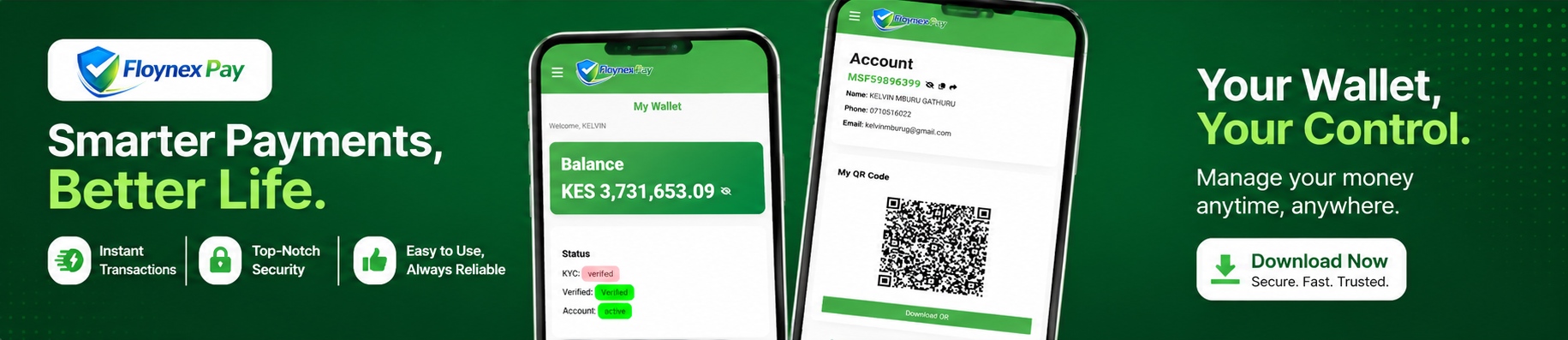
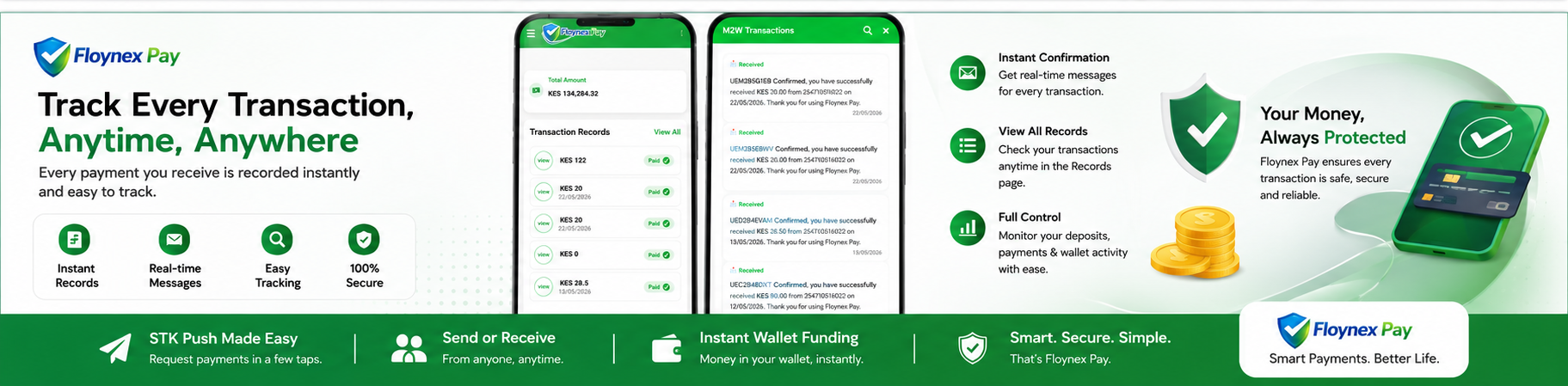
Floynex Hero

Floynex Pay App

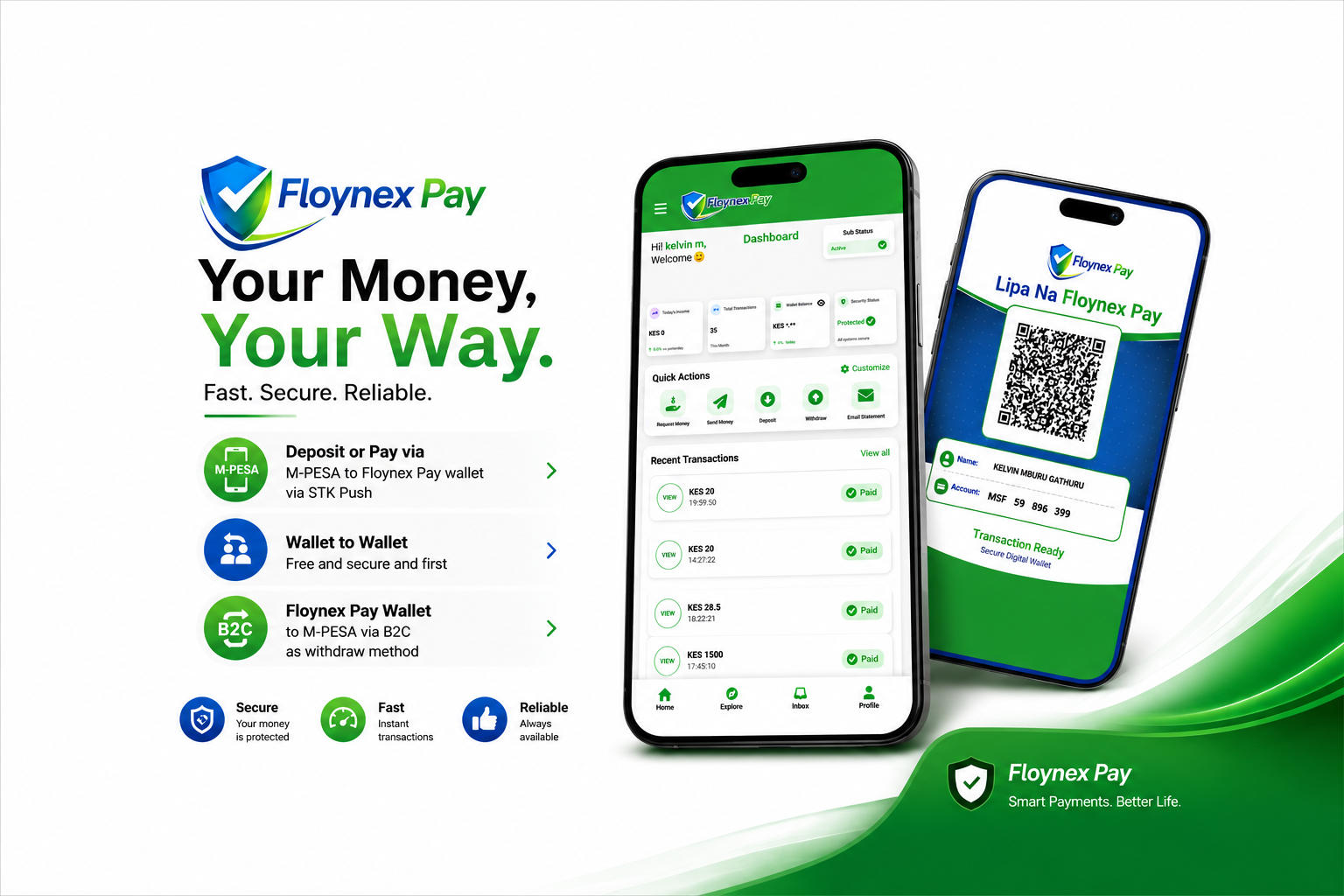
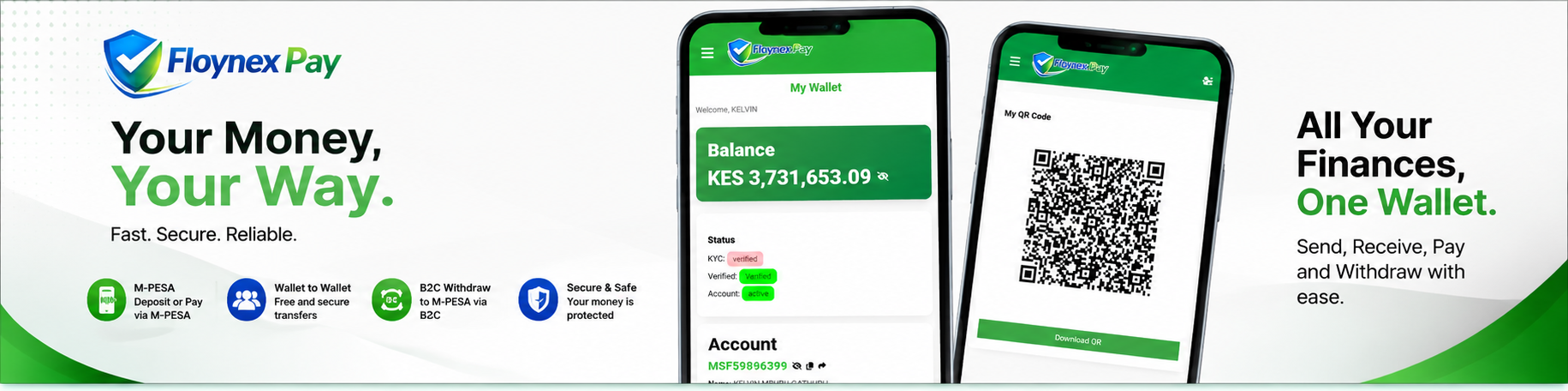
Your Money, Your Way.

Experience seamless digital financial services with unique account numbers and instant M-PESA integration.

Request From M-PESA

Trigger an instant STK push from any registered M-PESA number straight to your Floynex wallet account as a direct payment received.

Instant STK Push

Send Wallet to Wallet (W2W)

Execute fast peer-to-peer (P2P) transfers seamlessly between unique Floynex wallet accounts within the ecosystem.

P2P Transfers

Send to M-PESA

Quickly transfer funds from your Floynex wallet to any registered M-PESA number—whether personal or someone else's—as well as businesses and merchant bills seamlessly.

Instant M-Pesa Payouts

Withdraw from Floynex Agent

Easily handle physical cash withdrawals and cash deposits conveniently through trusted, registered Floynex agents.

Agent Network

Floynex Wallet Account

Hold your balance securely in your personalized digital wallet backed by a unique Floynex account number.

Unique Account ID

Secure & Safe

Your balances and transactions are heavily protected using enterprise-grade encrypted ledgers and multi-layered security protocols.

Protected Balances

Step-by-Step Guide

How Floynex Pay Works

Experience ultra-fast, secure transactions engineered for the modern Kenyan digital economy.

M-Pesa Logo → Floynex Logo STK PUSH

Get Paid Instantly

Request From M-PESA Made Easy

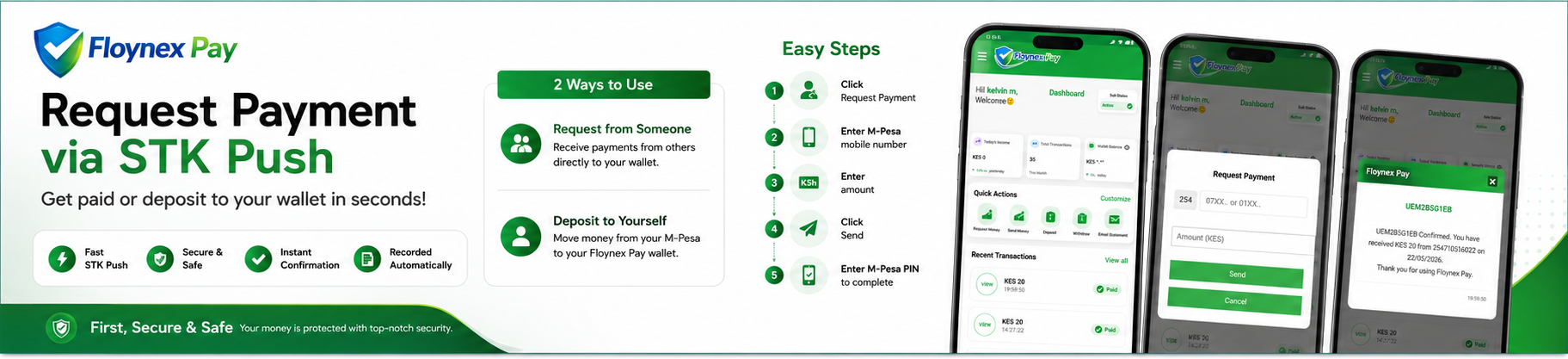
Collect payments instantly from any registered M-PESA subscriber directly into your digital wallet using secure automated prompts (commonly known as STK Push).
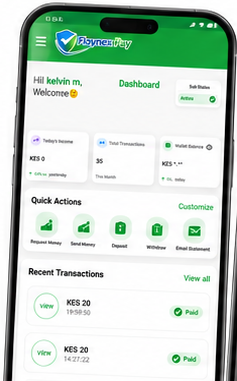
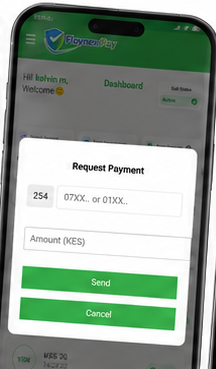
1. Tap Request from Dashboard Go to your dashboard and click the request from M-Pesa option from your quick actions.
2. Enter Details & Amount Input your client, customer, or payee's registered M-Pesa phone number, then enter the desired amount.
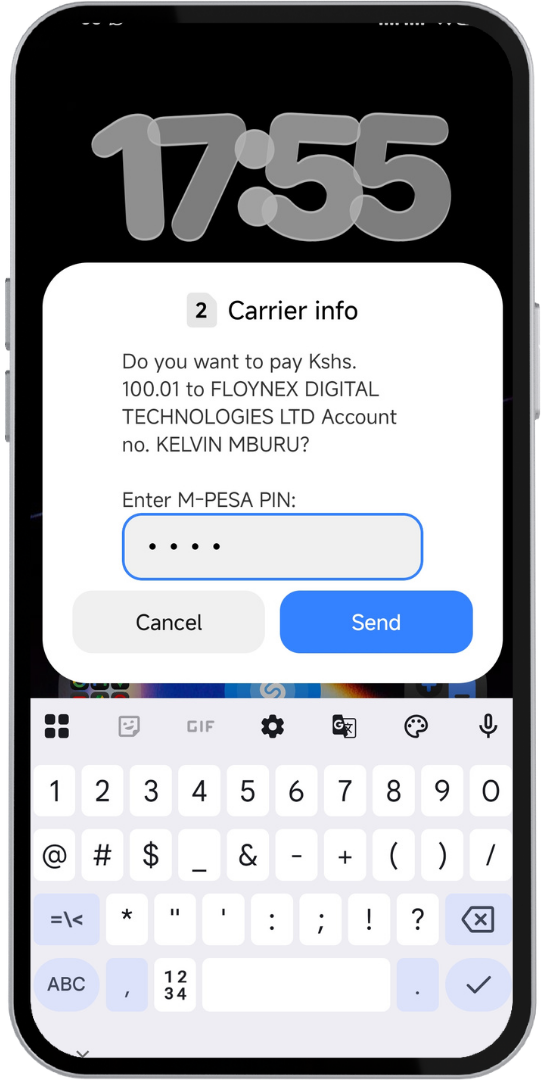
3. Send & Prompt Customer Click send. You will see it processing, and the system instructs the owner of that number to complete the payment by entering the correct PIN on their phone where the prompt is sent.
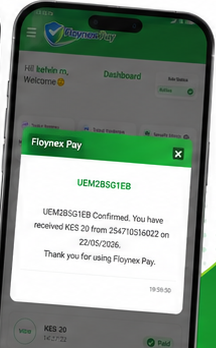
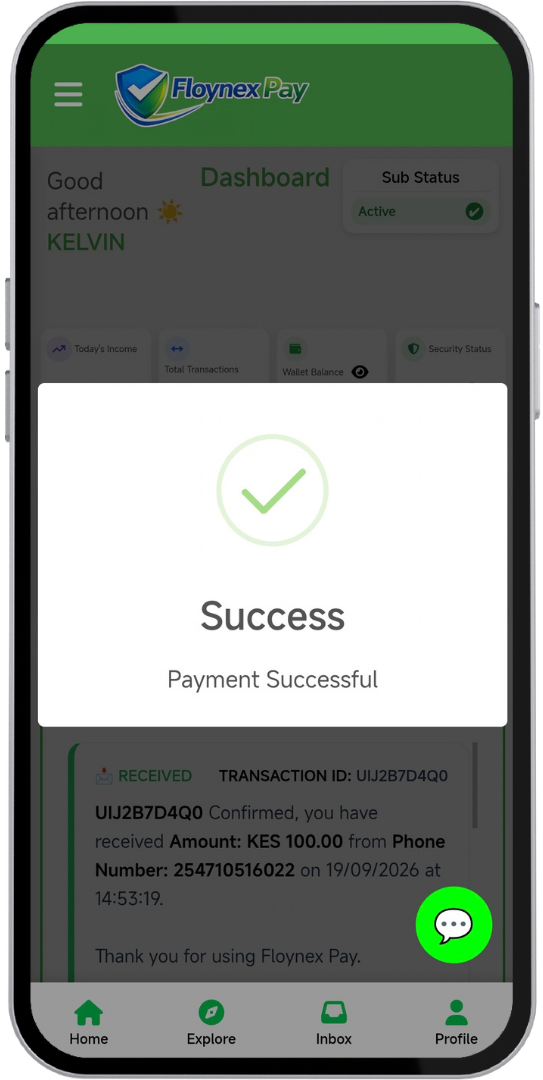
4. Instant Settlement & Confirmation Once completed, you will see a success alert, receive instant funds, and get an instant confirmation message of success.
STK Step 1
STK Step 2
STK Step 3
STK Step 4
STK Step 5

Free wallet to wallet

Send Money

Lipa Na Floynex P2P

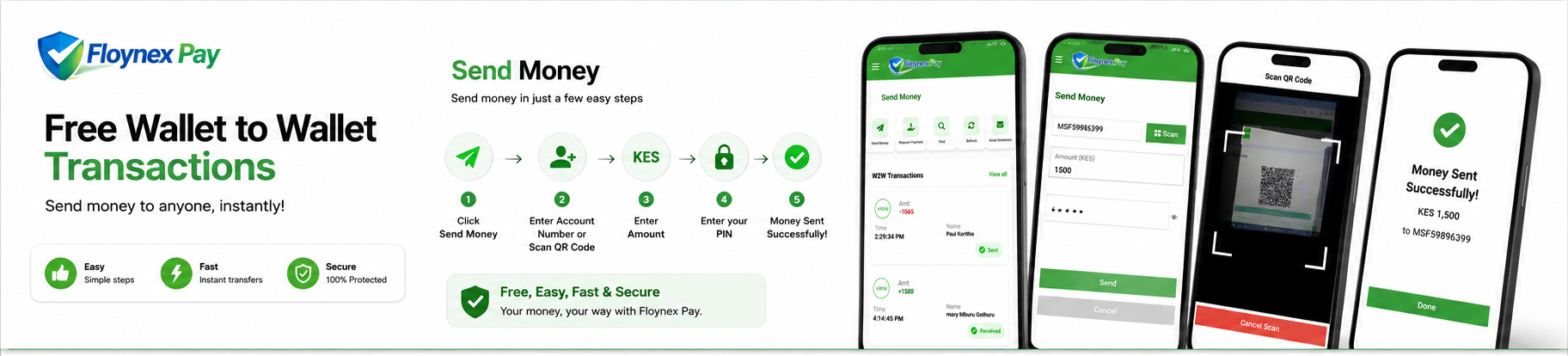
Floynex wallet-to-wallet transfers are free up to 1,000,000+ KES with zero transaction fees to another Floynex wallet account.
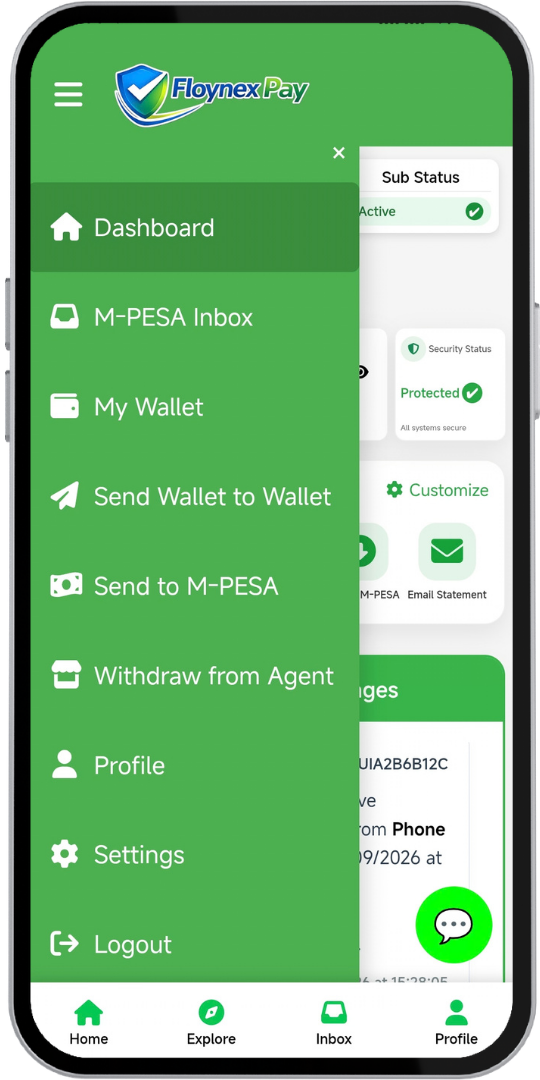
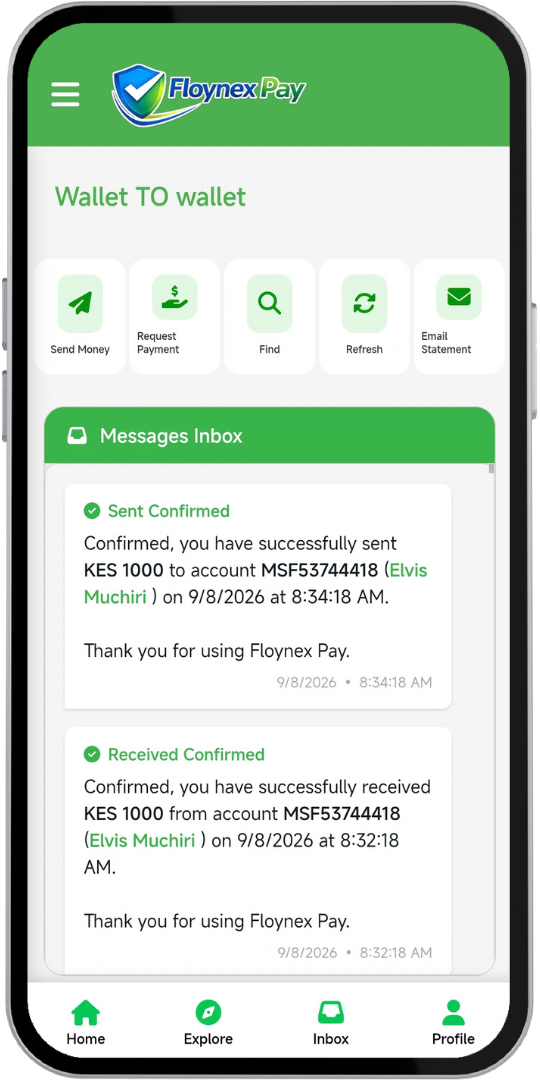
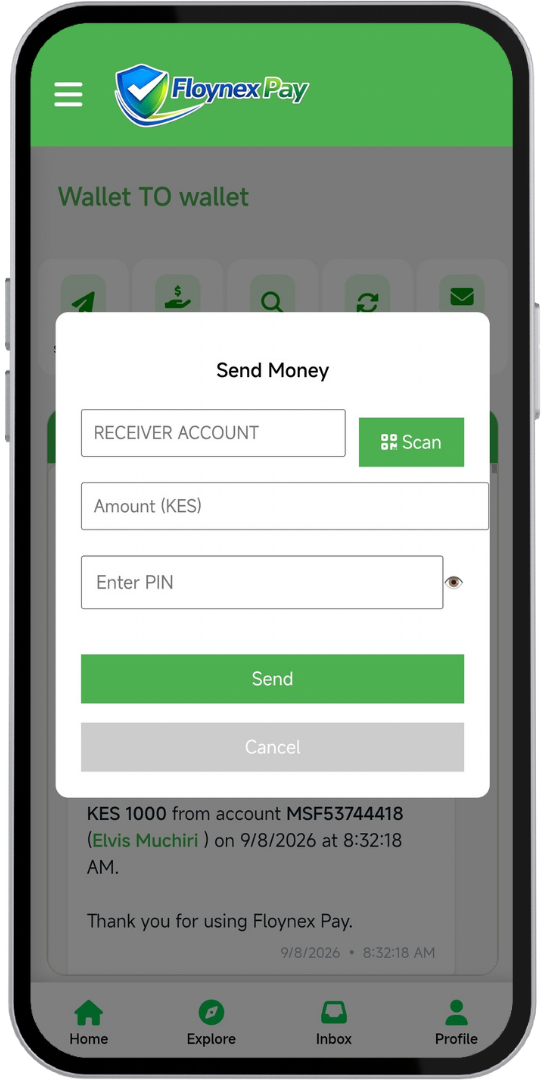
1. Navigate to Transfer Go to the sidebar menu and select Send Wallet to Wallet to open the send money page, then click the send money button.
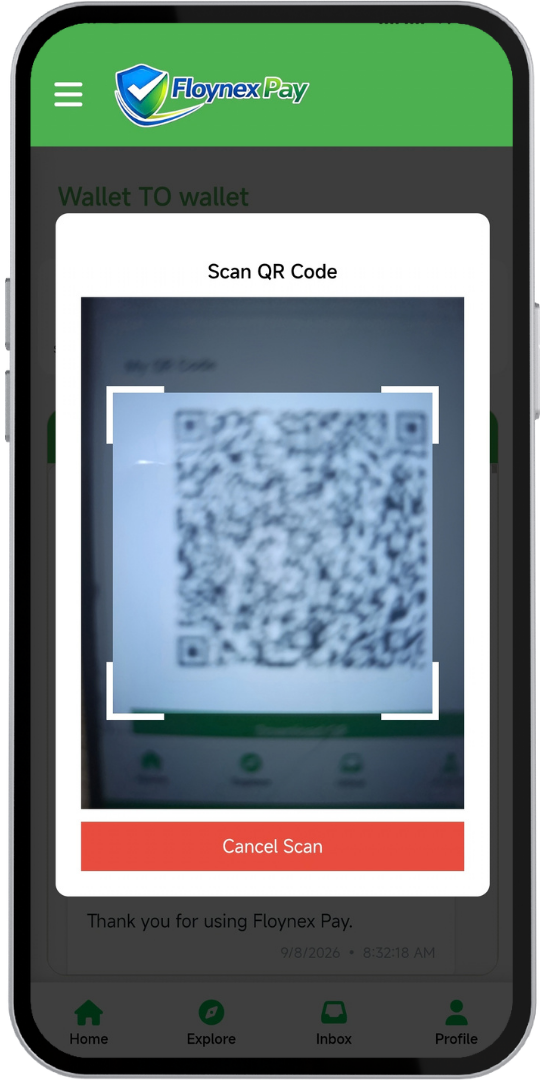
2. Enter Account or Scan QR Input the Floynex account number of the receiver, or scan their QR code to automatically get their account number. This minimizes mistakes, saves time, guarantees security, and ensures you never send money to the wrong account.
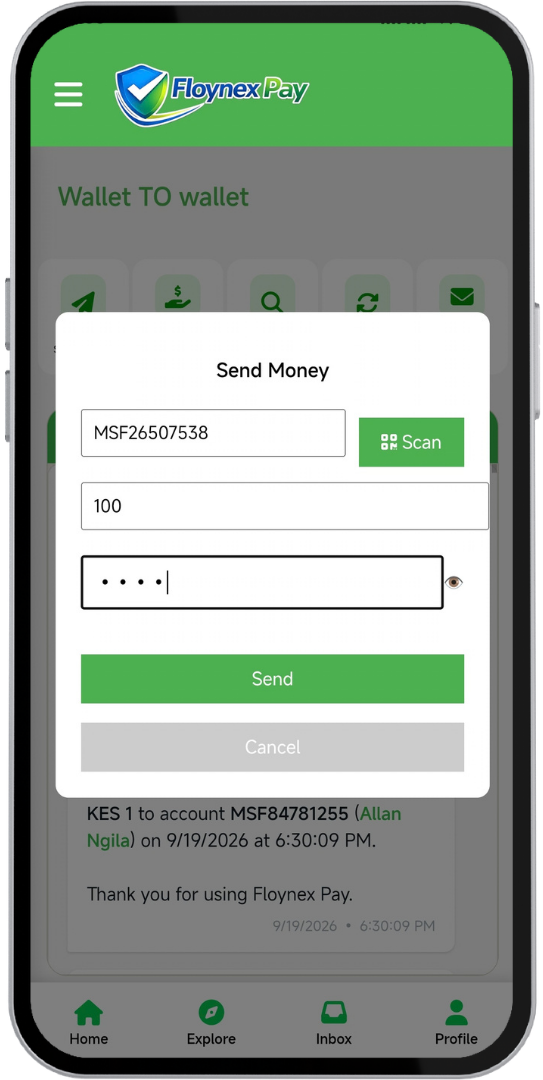
3. Authorize & Send Enter the amount, type your Floynex wallet PIN, and click send.
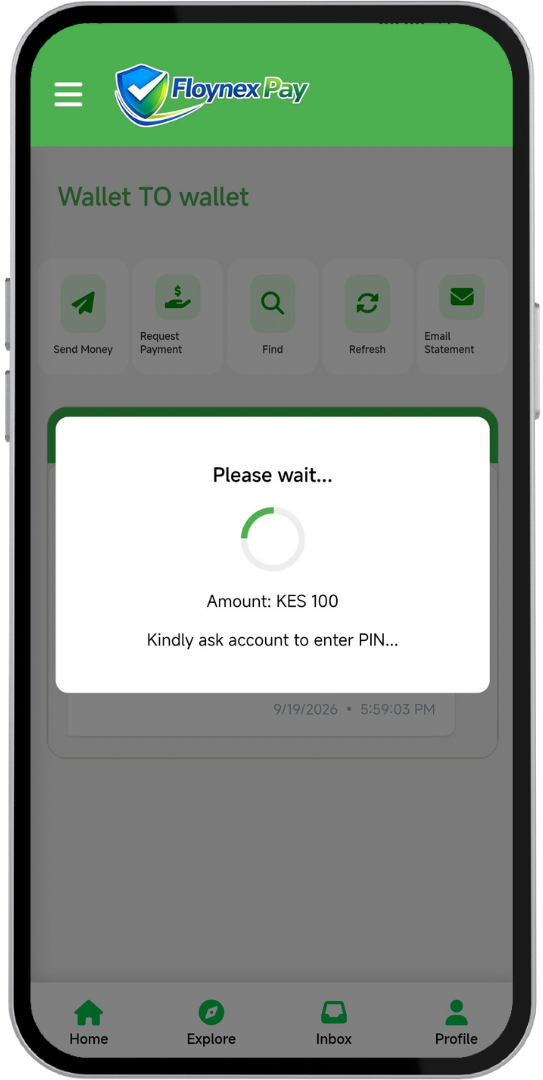
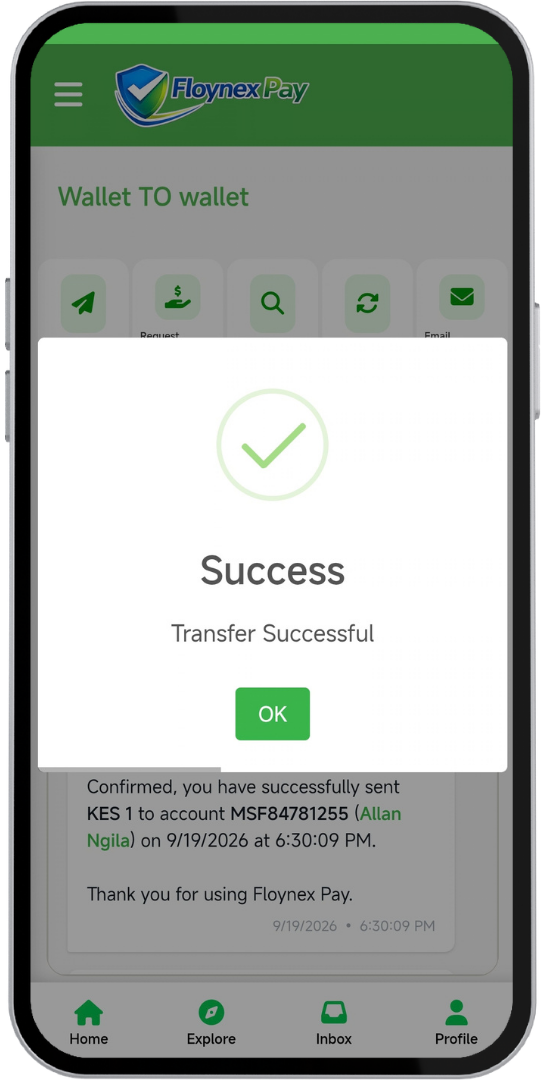
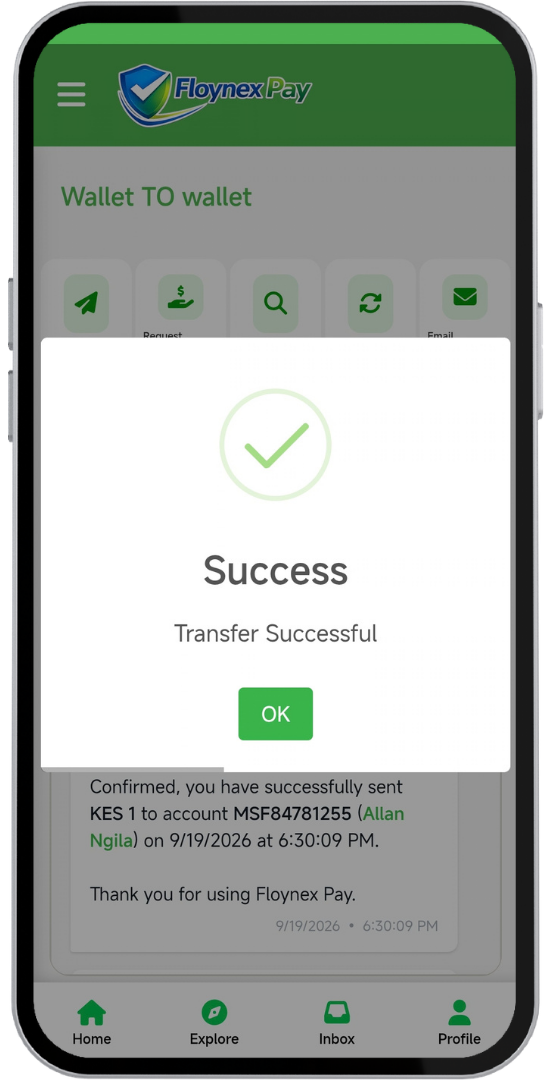
4. Instant Settlement Wait for it to finish processing payment within milliseconds to 2 seconds at most. You will instantly see a success status and confirmation message.
W2W Step 1: Navigation Menu
W2W Step 2: Dashboard Overview
W2W Step 3: Send Money Form
W2W Step 4: QR Code Scanner
W2W Step 5: Input Details & PIN
W2W Step 6: Processing Securely
W2W Step 7: Success Confirmation

Free wallet to wallet

Send Money

Request Money

Lipa Na Floynex P2P

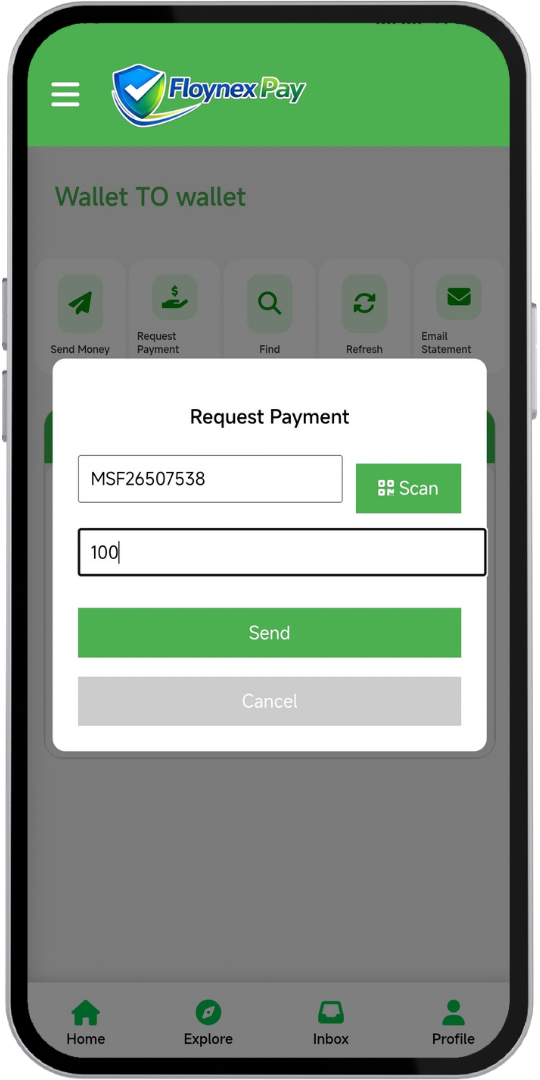
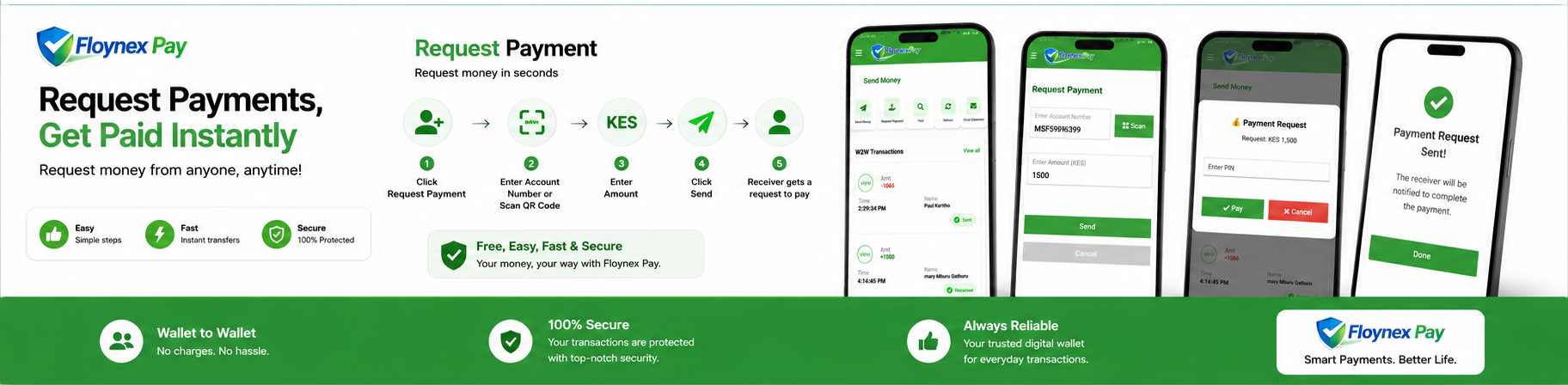
Trigger an instant peer-to-peer payment request (Floynex's wallet-to-wallet STK push logic) to pull funds securely from another Floynex user right inside their app.
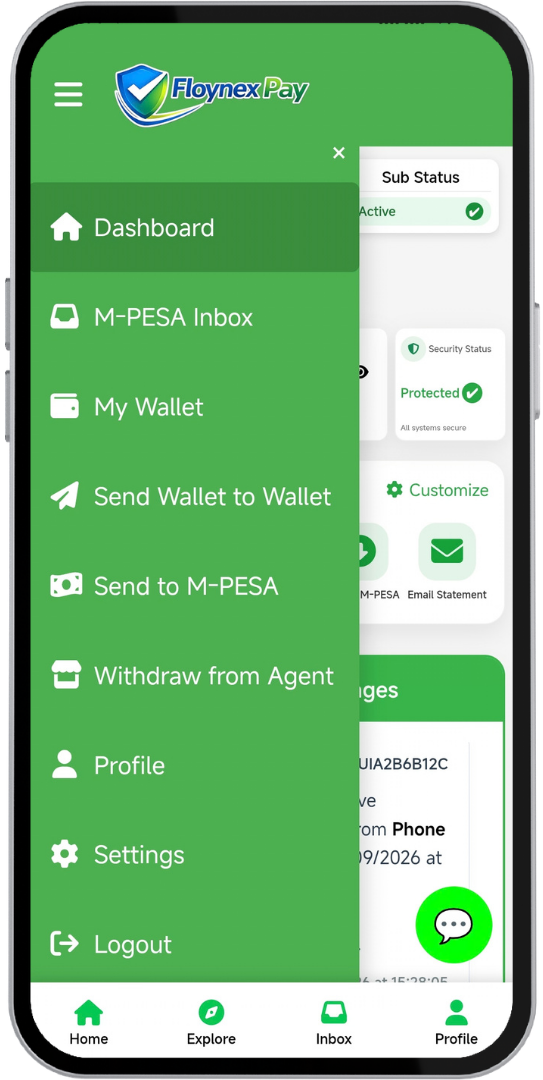
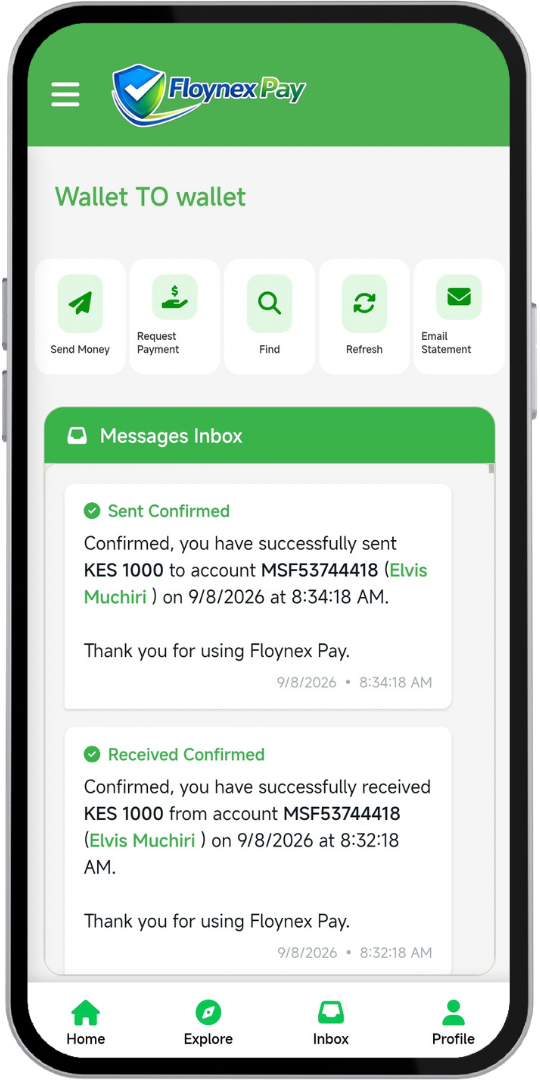
1. Navigate to Send Money Go to your sidebar menu and select Send Wallet to Wallet, which will land you on the send money page.
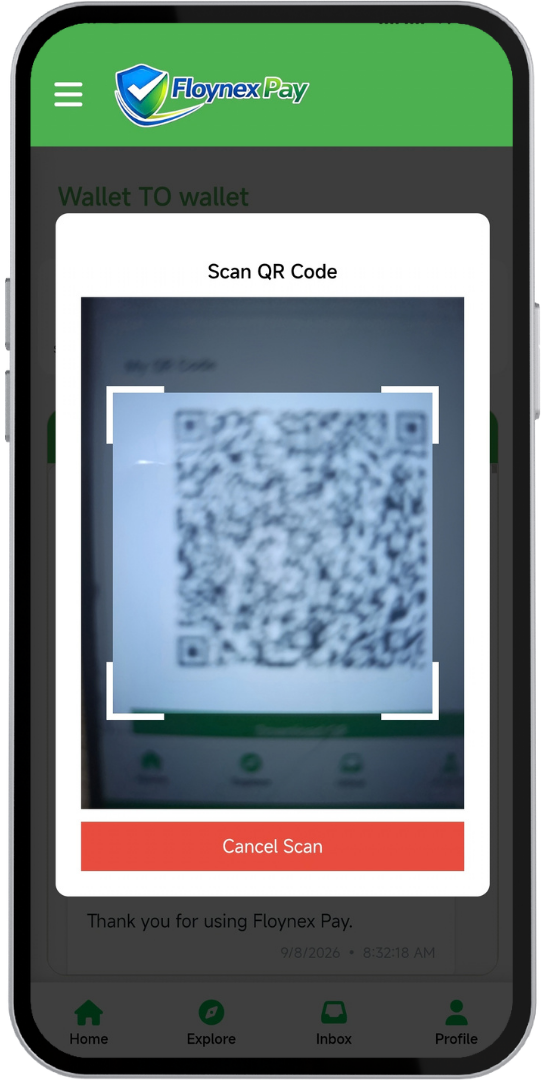
2. Click Request Payment & Scan QR Click the Request Payment button. Enter the Floynex wallet account of the person who owes you money, or scan their QR code to automatically get their account number. This minimizes mistakes, saves time, guarantees security, and ensures you never request money from the wrong account.
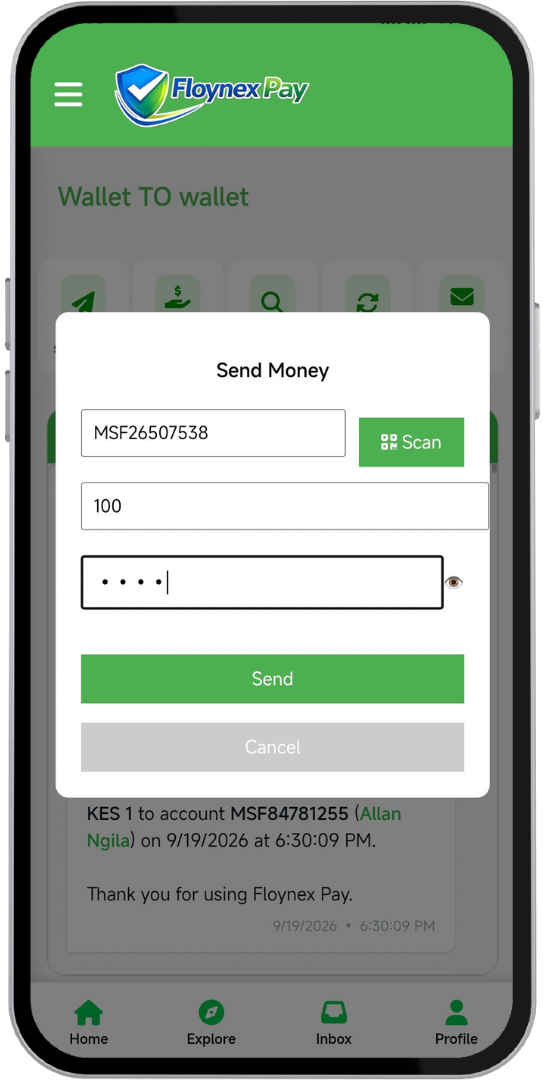
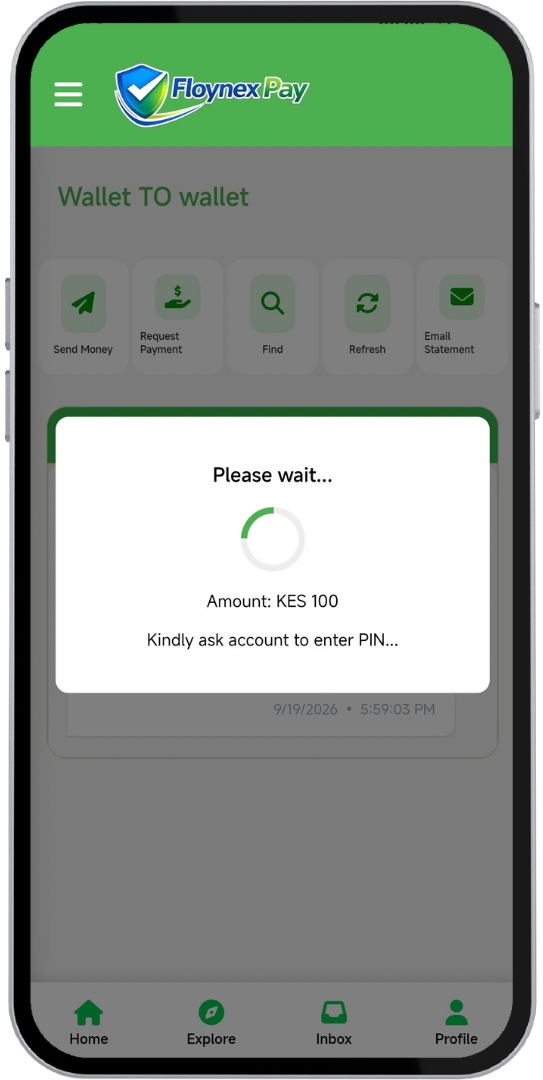
3. Enter Amount & Trigger In-App Prompt Enter the amount and click send. This will trigger a prompt request directly to the payee inside their Floynex app when they are logged in. You will see it processing, instructing you to tell the payee party to confirm and complete the payment by entering the correct PIN.
4. Instant Confirmation & Funds Once the PIN is entered, you will see instant confirmation, an instant message, instant funds, and an instant alert of success.
Step 3 - W2W 1: Navigation Menu
Step 3 - W2W 2: Dashboard Overview
Step 3 - W2W 3: Request Payment Form
Step 3 - W2W 4: QR Code Scanner
Step 3 - W2W 5: Details and PIN Entry
Step 3 - W2W 6: STK Push Processing Prompt
Step 3 - W2W 7: Success Confirmation
Floynex Logo → M-Pesa Logo Cheap & Affordable

Send to M-PESA

Lipa Na Floynex B2C

Send Money from Floynex Wallet to Any M-PESA Number

Transfer funds instantly from your Floynex wallet balance directly to any registered Safaricom M-PESA number. Minimum is 10 KES and maximum is up to 250,000 KES with a transaction cost of only 13 KES. View full tariffs on the Floynex Agent page.
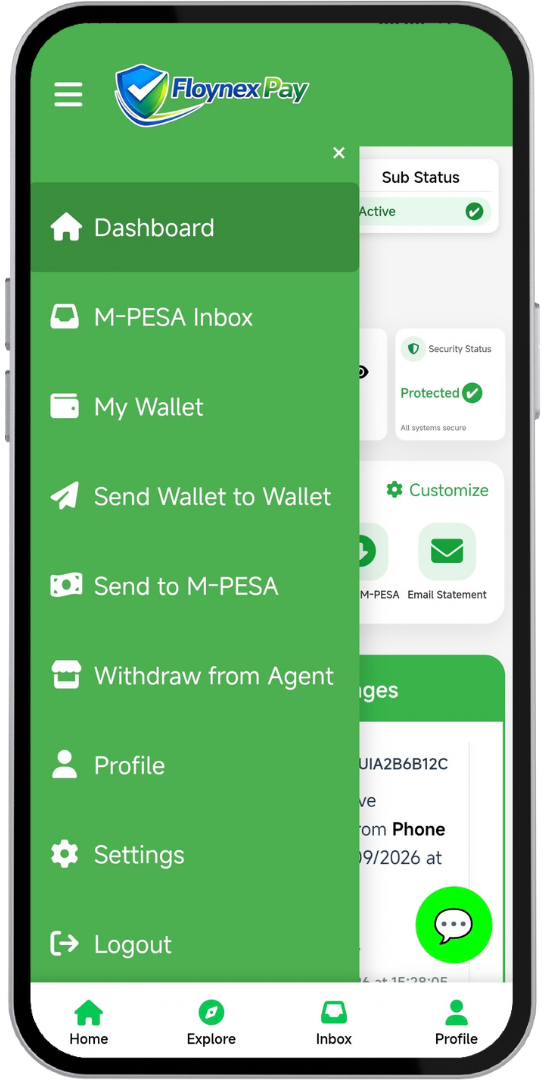
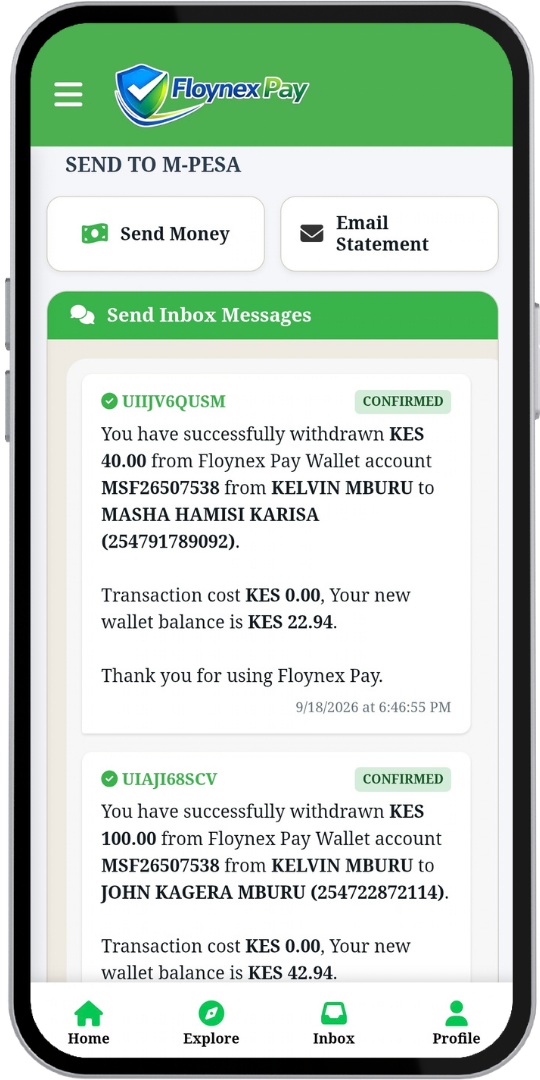
1. Navigate to Send to M-Pesa Go to the sidebar menu and navigate to Send to M-Pesa. Once landed on the page, click the send money button.
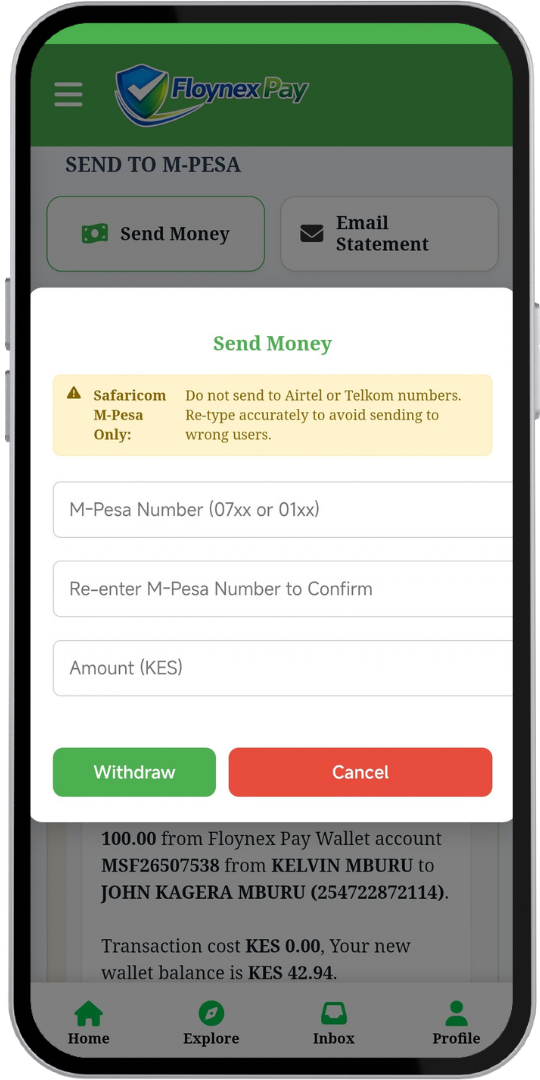
2. Enter Number & Amount Input the registered M-Pesa phone number, re-type it in the second confirmation field, and enter your desired amount.
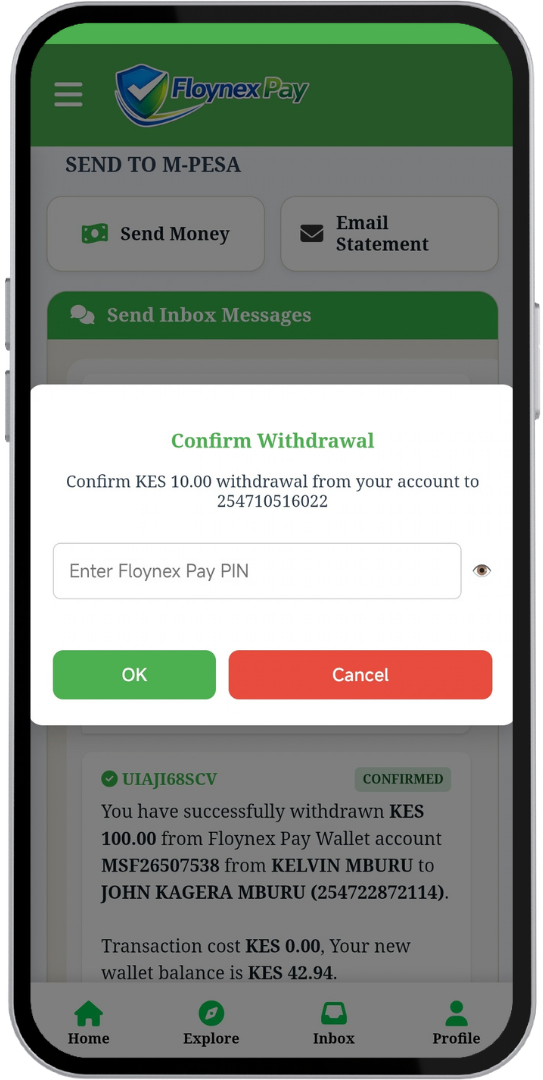
3. Confirm Details & Enter PIN Click send. It will ask you to confirm the amount and the number. If correct, enter your secret PIN.
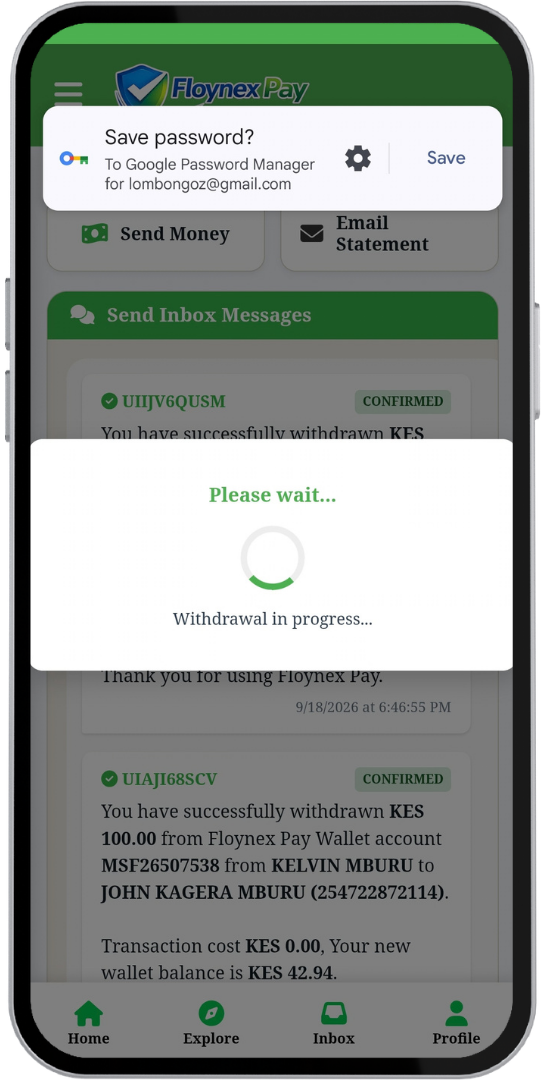
4. Instant Processing & Success Watch it process. Once completed in milliseconds (provided you had sufficient funds and entered the correct PIN), you will see an instant message and confirmation of success, and the receiver will get their M-Pesa message instantly. Easy, fast, and cheap!
Step 4 - M-PESA 1: Navigation Menu
Step 4 - M-PESA 2: Send Money Dashboard
Step 4 - M-PESA 3: Payout Form
Step 4 - M-PESA 4: PIN Confirmation
Step 4 - M-PESA 5: Withdrawal in Progress
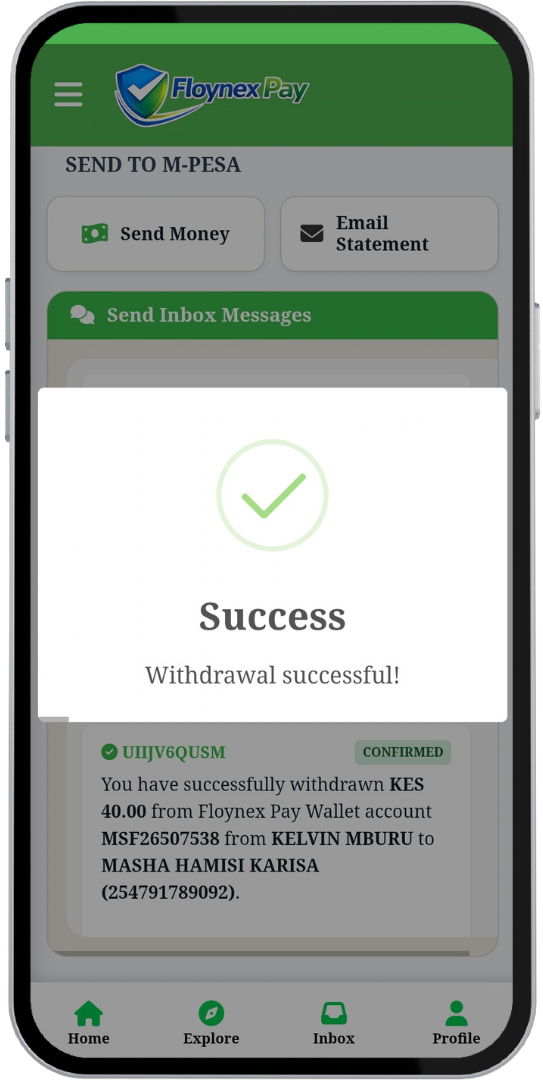
Step 4 - M-PESA 6: Success Confirmation
Floynex Logo Your Protection Matters

Security Starts With You

Guidelines for a Safe Floynex Experience

Strong Passwords

Create a strong password during registration. It must be between 8 to 14 characters long and include:

  • At least one uppercase letter (A-Z)
  • At least one lowercase letter (a-z)
  • At least one number (0-9)
  • At least one special character (!@#$%^&*)
Examples: JohnDoe1#, John1234.

Active Email & Credentials

Your email must be strictly active and working. Once your account is created, you will log in using this registered email and password combination (one email per account).

Accurate Wallet Profile & KYC

When setting up your wallet, ensure all information provided is accurate and correct, matching your real issued government documents, real names, active phone numbers, and verified email.

KYC Verification: This stands for Know Your Customer. If information provided is false, uses fake IDs, or appears suspicious, your KYC verification can be rejected, with the specific reason replied directly via your registered email.

Secure Transaction PIN

You will be required to create a secret PIN. This PIN is mandatory to authorize any transaction—whether it's wallet-to-wallet, M-PESA transfers, or agent withdrawals.

Never Share Your Secrets

Your login passwords and transaction PINs must never be shared with anyone. No Floynex staff member or agent will ever ask for your password or PIN. Keep them confidential!

Official Source Only

Do not download or use the Floynex Pay app from unverified external sources. It must be strictly downloaded from the Google Play Store ONLY to protect your funds.

Floynex Logo Account Infrastructure

Understanding Your Floynex Wallet

Every active Floynex Pay user receives a secure, unique financial identifier. Just like a traditional bank account or an M-PESA number, your wallet manages transaction visibility, tracking, and peer-to-peer flows.

Active Structure

The MSF Format & Identity

Your unique wallet ID always starts with the prefix MSF followed by 8 unique digits (for example: MSF26507538).

Balance Privacy: Instantly toggle your wallet balance visibility (*.**) right from your dashboard.
PIN & KYC Bound: Secured by your 4-digit digital PIN once KYC verification is active.
Dynamic Settings

Personal vs. Business Branding

Your app profile settings determine how your name and transaction records appear to merchants and peers.

Personal Mode

Displays your legal government name (e.g., KELVIN MBURU GATHURU) for standard peer transfers.

Business Mode

Switches your identity to your enterprise title (e.g., Web & Tech Dev) for commercial receipts.

Lipa Na Floynex Pay QR

Download or share your official QR code to bypass manual typing mistakes. Instant transaction readiness backed by sufficient funds.